In This Section
Show/Hide
Forum Tools
- 13. Use Replies Well
- 14. Stay Notified Without Overload
- 15. Use Bookmarks as a Personal Follow-Up System
- 16. Trust Levels
- 17. Voting, Likes, Solutions, and Wiki Posts
Post Customisation and Formatting
- 18. Rich Text Editor vs Markdown Editor
- 19. Composer Tools: Toolbar, Shortcuts, and Menus
- 20. Keyboard-Key Styling with kbd
- 21. Callouts
- 22. Dropdowns and Foldouts
- 23. Tables
- 24. Checklists and To-Do Lists
- 25. Code Blocks and Inline Code
- 26. Image Grids, Carousels, and Lightbox Images
- 27. Node > Documentation Custom Shortcut
[!attention]
If table-of-contents links do not jump correctly on this forum, the section headings still provide a clear manual index.
Forum Tools
Use this section to understand bookmarks, voting, likes, solutions, notifications, and trust levels.
[!example]Back to Contents
13. Use Replies Well
Use replies to keep topics useful and focused.
- Use Like when you agree or found something useful.
- Use a normal reply when continuing the same topic.
- Quote only the part you are responding to.
- If your reply becomes a different problem, create a linked topic using
Reply as linked topicinstead of derailing the original one. - If an answer solves the issue, mark the solution where that option is available.
- If an issue has already been reported, add useful reproduction details instead of starting a duplicate.
[!success]
Useful replies add new information.Examples:
- reproduction steps
- version details
- screenshots
- logs
- workaround
- confirmation that the issue also happens on another setup
[!example]Back to Contents
14. Stay Notified Without Overload
You do not need to live on the forum all day.
Use the tools that match your workflow:
- watch topics you care about closely
- track categories or tags you follow regularly
- bookmark posts you want to revisit
- use reminders for things to come back to
- enable the forum as an app in your browser if you want a desktop-like experience
- use email digests if you prefer a catch-up workflow
Notification Levels
| Level | Use when… |
|---|---|
| Watching | You want notifications for all activity |
| Watching First Post | You want to know when new topics are created, without every reply |
| Tracking | You want unread counts and normal awareness |
| Normal | You only need replies or mentions |
| Muted | You do not want the category/topic appearing prominently |
[!tip]
For official update areas, consider Watching First Post or bookmarking important topics.That keeps you informed without turning every reply into a notification.
[!example]Back to Contents
15. Use Bookmarks as a Personal Follow-Up System
Bookmarks are useful for keeping track of important topics.
Use bookmarks for:
- official updates
- known issues
- tutorials you want to try
- answers you may need later
- posts you want to reply to
- topics you want to revisit
- wiki pages
- useful node/workflow explanations
[!tip]
Bookmark official information.If an official topic is important to you, bookmark it and set a reminder instead of trying to remember where it was.
Example bookmark names:
Check after next Gaea update
Useful Unreal height workflow
interesting node example
Known issue to revisit
Good template
[!example]Back to Contents
16. Trust Levels
Trust Levels unlock more participation over time through reading and healthy activity.
In short:
- read broadly
- like useful content
- reply where you can add value
- keep posts tidy and constructive
- avoid spammy or duplicate posting
- help keep useful topics accurate
See: Trust Levels
[!example]Back to Contents
17. Voting, Likes, Solutions, and Wiki Posts
Use forum tools to make useful information easier to identify.
| Tool | Use it for |
|---|---|
| Like | Thanking someone or marking a useful reply |
| Vote | Supporting ideas or requests when voting is enabled |
| Solution | Marking the answer if the category supports solved topics |
| Bookmark | Saving something for later |
| Quote | Replying to a specific point clearly |
| Edit | Fixing mistakes or improving a post |
| Wiki | Maintaining long-term community information |
[!success]
If a reply solves your issue and the category supports solutions, mark it as the solution.This helps future users find the answer faster.
See: Topic voting
Post Customisation and Formatting
Use this section to make posts clear, readable, compact, and visually useful.
[!example]Back to Contents
18. Rich Text Editor vs Markdown Editor
Discourse may let you switch between a Rich Text editor and a Markdown editor.
Both are useful.
| Editor mode | Best for | Why use it |
|---|---|---|
| Rich Text | Quick replies, simple posts, casual discussion | Easier and more visual |
| Markdown | Wikis, guides, templates, bug reports, callouts, image grids, tables, code blocks | More precise and maintainable |
[!important]
Use Markdown when the post should become long-term knowledge.This includes wikis, tutorials, bug reports, structured feedback, and reusable examples.
Use Rich Text when...
Use Rich Text when you are:
- replying casually
- giving quick feedback
- writing a short answer
- adding simple bold text, links, or images
- not worried about exact structure
Rich Text is good for speed.
Use Markdown when...
Use Markdown when you are:
- making a wiki
- writing a guide
- sharing a tutorial
- posting a bug report
- using callouts
- using details dropdowns
- using image grids
- writing code/log examples
- creating copy/paste templates
- formatting something others may reuse later
Markdown is good for structure.
[!example]Back to Contents
19. Composer Tools: Toolbar, Shortcuts, and Menus
Discourse does not currently behave like a full right-click Markdown context-menu editor in the same way some desktop writing apps do.
Instead, use:
- the composer toolbar
- the composer actions/options menu
- keyboard shortcuts
- Rich Text editor controls
- Markdown syntax
- callout controls when Quote Callouts are enabled
[!tip]
For quick writing, use the toolbar or Rich Text editor.For structured posts, wiki pages, guides, bug reports, templates, and examples, use Markdown mode when possible.
Useful Composer Controls
| Tool | Best used for |
|---|---|
| Toolbar buttons | Bold, italic, links, quotes, uploads, lists, tables, details, and other common formatting |
| Actions/options menu | Extra composer tools that may not fit in the main toolbar |
| Keyboard shortcuts | Fast formatting without leaving the keyboard |
| Rich Text mode | Visual writing and quick replies |
| Markdown mode | Precise structure, templates, code blocks, callouts, and reusable formatting |
| Callout controls | Changing callout type, title, folding, and layout when enabled |
[!note]
Some toolbar buttons, menu items, and shortcuts may vary depending on browser, device, editor mode, theme components, and forum configuration.If a shortcut does not work here, do not document it as a confirmed shortcut.
Mentions
You can use mentions to help your topics or chats have rich context
| Code | Type | Render |
|---|---|---|
#official |
channel mention | Official |
#official::tag |
tag mention | official |
/Cellular |
custom Gaea node reference to docs | /cellular |
[!example]Back to Contents
20. Keyboard-Key Styling with kbd
Use <kbd> when showing keyboard shortcuts.
Markdown / HTML
<kbd>Ctrl</kbd> + <kbd>Q</kbd>
Result
Ctrl + Q
Use this for:
- keyboard shortcuts
- composer shortcuts
- Gaea shortcuts
- browser shortcuts
- clear step-by-step instructions
Examples:
For Forum Rich Editor Composer
Press Ctrl + Q to insert an empty callout.
Press Ctrl + K to add or edit a link.
Press Ctrl + B for bold text.
For Gaea
Press Ctrl + B to open Build Options
Press Ctrl + G to group selected nodes.
Press Ctrl + shift + LMB dragging on the graph to shift nodes on the right the right.
[!tip]
Use<kbd>for keyboard keys, not for normal buttons in the Gaea UI.For interface buttons, write the button name in bold instead.
Example:
Click Send Online in Gaea Diagnostics.
[!example]Back to Contents
21. Callouts
Callouts make important information stand out.
Fast Callout Shortcut
Use this shortcut in the composer:
Ctrl + Q
Rendered as:
Ctrl + Q
Basic Callout
Markdown:
> [!tip]
> Use quotes in search when looking for an exact phrase.
Result:
[!tip]
Use quotes in search when looking for an exact phrase.
Callout with Custom Title
Markdown:
> [!warning] Before posting a bug report
> Search first to check whether the issue already has a topic.
Result:
[!warning] Before posting a bug report
Search first to check whether the issue already has a topic.
Folded Callout: Closed by Default
Markdown:
> [!example]- Click to expand examples
> This content starts hidden.
>
> Use this for longer examples, advanced notes, or optional detail.
Result:
[!example]- Click to expand examples
This content starts hidden.Use this for longer examples, advanced notes, or optional detail.
Folded Callout: Open by Default
Markdown:
> [!todo]+ My expanded checklist
> * [x] Search existing topics
> * [ ] Add screenshots
> * [ ] Include Gaea version
> * [ ] Link relevant docs
Result:
[!todo]+ My expanded checklist
- Search existing topics
- Add screenshots
- Include Gaea version
- Link relevant docs
Useful Callout Types
| Type | Best used for |
|---|---|
[!note] |
General notes |
[!abstract] |
Summaries, TLDRs, section overviews |
[!info] |
Neutral explanations |
[!todo] |
Checklists and action lists |
[!tip] |
Helpful advice |
[!success] |
Good examples, solved patterns, recommended behaviour |
[!question] |
FAQ-style entries |
[!warning] |
Common mistakes, things to check first |
[!failure] |
Missing, failed, or not-working examples |
[!danger] |
Serious warnings or sensitive information |
[!bug] |
Known issues, reproducible problems, temporary limitations |
[!example] |
Demonstrations and before/after examples |
[!quote] |
Quoted or cited material |
Good Example vs Weak Example Using Callouts
Markdown:
> [!summary] Strong topic title
> `Gaea 2.3 crash when baking Cellular node in tiled build`
>
> This includes the version, node, action, and problem.

> [!warning] Weak topic title
> `Gaea broken`
>
> This is hard to search, hard to diagnose, and not useful for future readers.
Result:
[!success] Strong topic title
Gaea 2.3 crash when baking Cellular node in tiled buildThis includes the version, node, action, and problem.
[!note] Weak topic title
Gaea brokenThis is hard to search, hard to diagnose, and not useful for future readers.
[!example]Back to Contents
22. Dropdowns and Foldouts
Dropdowns are useful when something is helpful but too long to show by default.
Use them for:
- templates
- long examples
- logs
- advanced notes
- before/after breakdowns
- troubleshooting steps
- admin notes
- tables that would make the main post too long
Basic Dropdown
Markdown:
[details="Click to expand"]
Hidden content goes here.
[/details]
Result:
Click to expand
Hidden content goes here.
Dropdown Containing a Table
Markdown:
[details="List"]
| Setting | Description |
|----|----|
| **callouts** | Define the callouts. |
| **callout_fallback_type** | Default callout type when the specified type is not found. |
| **callout_background_opacity** | Global background opacity for callouts. |
| **callout_title_font_weight** | Global font weight for callout titles. |
[/details]
Result:
List
| Setting | Description |
|---|---|
| callouts | Define the callouts. |
| callout_fallback_type | Default callout type when the specified type is not found. |
| callout_background_opacity | Global background opacity for callouts. |
| callout_title_font_weight | Global font weight for callout titles. |
[!warning]
Do not paste the rendered HTML from a Discourse post unless you know exactly why you need it.Use the source syntax instead:
[details="Title"] ... [/details]
Dropdown Containing a Template
Markdown:
[details="Copy/paste bug report template"]
~~~text
## Summary

## Gaea version

## Diagnostics / Watson receipt code

## Relevant node, tool, graph area, or workflow

## What I expected

## What happened instead

## Steps to reproduce

1.
2.
3.

## Evidence

## What I already tried
~~~
[/details]
Result:
Copy/paste bug report template
## Summary

## Gaea version

## Diagnostics / Watson receipt code

## Relevant node, tool, graph area, or workflow

## What I expected

## What happened instead

## Steps to reproduce

1.
2.
3.

## Evidence

## What I already tried
[!example]Back to Contents
23. Tables
Tables are useful when comparing two ways of writing the same thing.
Markdown:
| Less useful | More useful |
|----|----|
| Help please | Gaea 2.3 crash when baking Cellular node in tiled build |
| It broke | Expected X, got Y, steps attached |
| How do I make this better? | How can I reduce terracing after Erosion before Unreal export? |
Result:
| Less useful | More useful |
|---|---|
| Help please | Gaea 2.3 crash when baking Cellular node in tiled build |
| It broke | Expected X, got Y, steps attached |
| How do I make this better? | How can I reduce terracing after Erosion before Unreal export? |
[!tip]
Tables work best for short comparisons.If the explanation gets long, use callouts or dropdowns instead.
You can insert tables from the composer in the (+) for better writing flow.
[!example]Back to Contents
24. Checklists and To-Do Lists
Checklists are useful for guides, bug reports, feedback posts, and wiki maintenance.
Markdown:
* [x] Search existing topics
* [x] Add Gaea version
* [ ] Add screenshots
* [ ] Link related docs
* [ ] Mark solution if solved
Result:
- Search existing topics
- Add Gaea version
- Add screenshots
- Link related docs
- Mark solution if solved
[!tip]
Checklists can be updated by those with editing permissions on that topic or
Checklist Inside a Callout thst can expand and colllapse
Markdown:
> [!todo]+ Before posting a bug report
> * [x] Search existing topics
> * [ ] Include exact Gaea version
> * [ ] Add reproduction steps
> * [ ] Add screenshots or files
> * [ ] Remove private information
Result:
[!todo]+ Before posting a bug report
- Search existing topics
- Include exact Gaea version
- Add reproduction steps
- Add screenshots or files
- Remove private information
[!example]Back to Contents
25. Code Blocks and Inline Code
Use code blocks when exact text matters.
Good for:
- logs
- templates
- file paths
- search examples
- commands
- node lists
- settings
- copy/paste examples
Markdown:
~~~text
"Gaea 3" order:latest
gaea2unreal categories:using-gaea,learning order:latest
udim with:images
in:wiki community
Result:
~~~text
"Gaea 3" order:latest
gaea2unreal categories:using-gaea,learning order:latest
udim with:images
in:wiki community
Use inline code for exact words, node names, settings, paths, and short values.
Markdown:
Use `Cellular`, `Height Remap`, `tiled build`, or `/cellular` when naming the exact thing.
Result:
Use Cellular, Height Remap, tiled build, or /cellular when naming the exact thing.
[!example]Back to Contents
26. Image Grids, Carousels, and Lightbox Images
Use the right image layout for the job.
| Layout | Best for |
|---|---|
| Normal image grid | Several screenshots shown compactly |
| Carousel / scrollable image block | Step-by-step image sequences if enabled |
| Normal uploaded images with lightbox | Images that need close inspection or strict ordering |
[!example]Back to Contents
Image Layout Option 1: Normal Image Grid
Use [grid] when several screenshots explain one issue or workflow.
Markdown:
[grid]


[/grid]
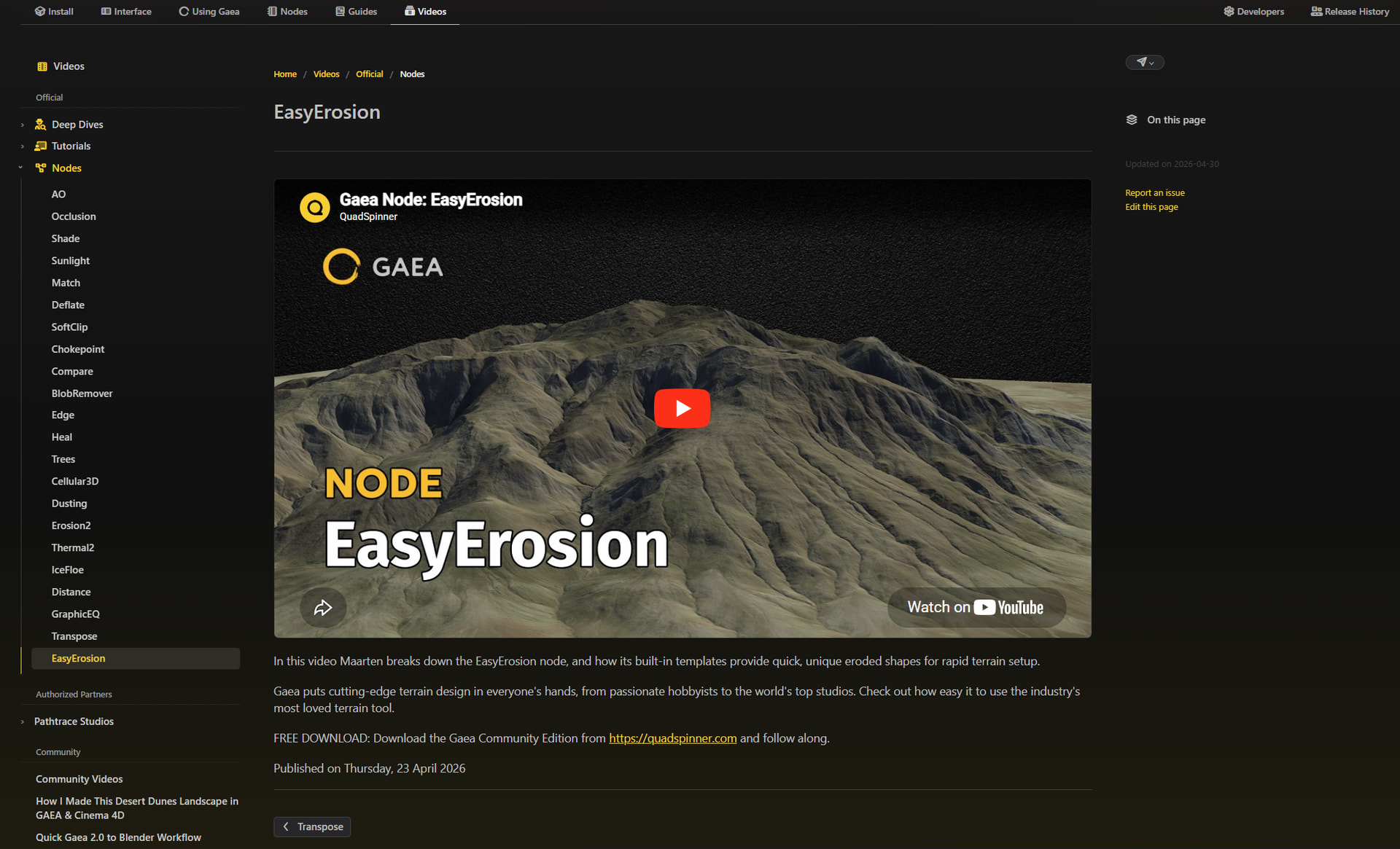
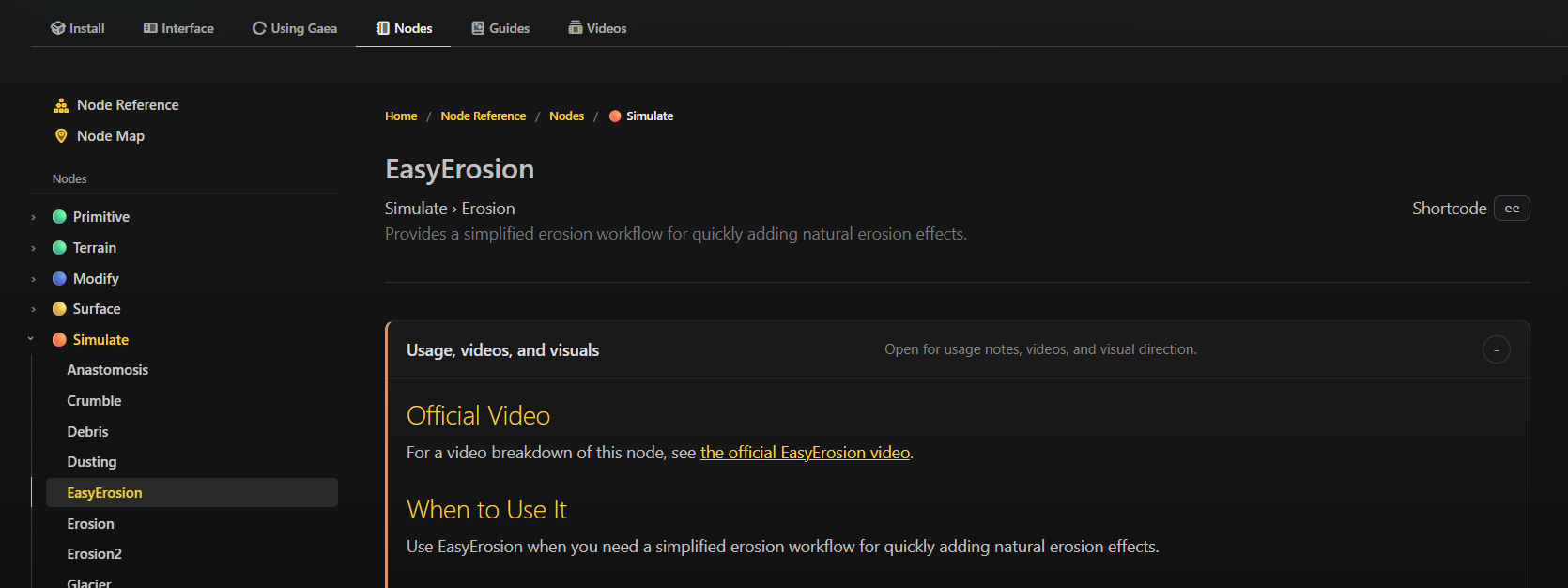
Best for:
- graph overview
- node settings
- viewport result
- export result
- before/after comparisons
- bug report evidence
[!note]
Replaceupload://...with the actual image links inserted by the forum after uploading images.
[!warning]
Image grids may reorder images to balance the layout.If order matters, number your captions:
- 1 - graph overview
- 2 - node settings
- 3 - viewport result
- 4 - export result
Image Layout Option 2: Carousel / Scrollable Image Block
Some posts may support a carousel-style image block where readers can move left and right through images.
Markdown:
[grid mode=carousel]


[/grid]
Best for:
- step-by-step visual workflows
- compact tutorials
- before / during / after breakdowns
- node setting comparisons
- image-heavy examples that should not make the post too long
Image Layout Option 3: Normal Images and Lightbox
Sometimes the best option is to upload images normally with crtl + v or drag and drop.
Users can usually click or tap an image to view it larger. If several images are in the post, the image viewer may allow moving between them.
Best for:
- images that need close inspection
- ordered screenshots
- single important result images
- detailed UI screenshots
- cases where grid layout makes images too small
[!example]Back to Contents
27. Node > Documentation Custom Shortcut
There is a custom /{nodeName} formula that allows users to post in both chat and topics and node name and it creates a direct node reference link to the Gaea docs.
Example:
/cellular
Use node shortcuts for:
- node-specific help
- tutorials
- graph breakdowns
- bug reports
- workflow examples
- feedback about a specific node
[!example]Back to Contents