I want to create a continuation of the main landscape by scaling it down using the Transform node and a mountain primitive. I want them to connect seamlessly without modifying the scaled-down landscape, because I’ll then export it as a mesh to 3D software like Blender and use it as a background in Unreal Engine.
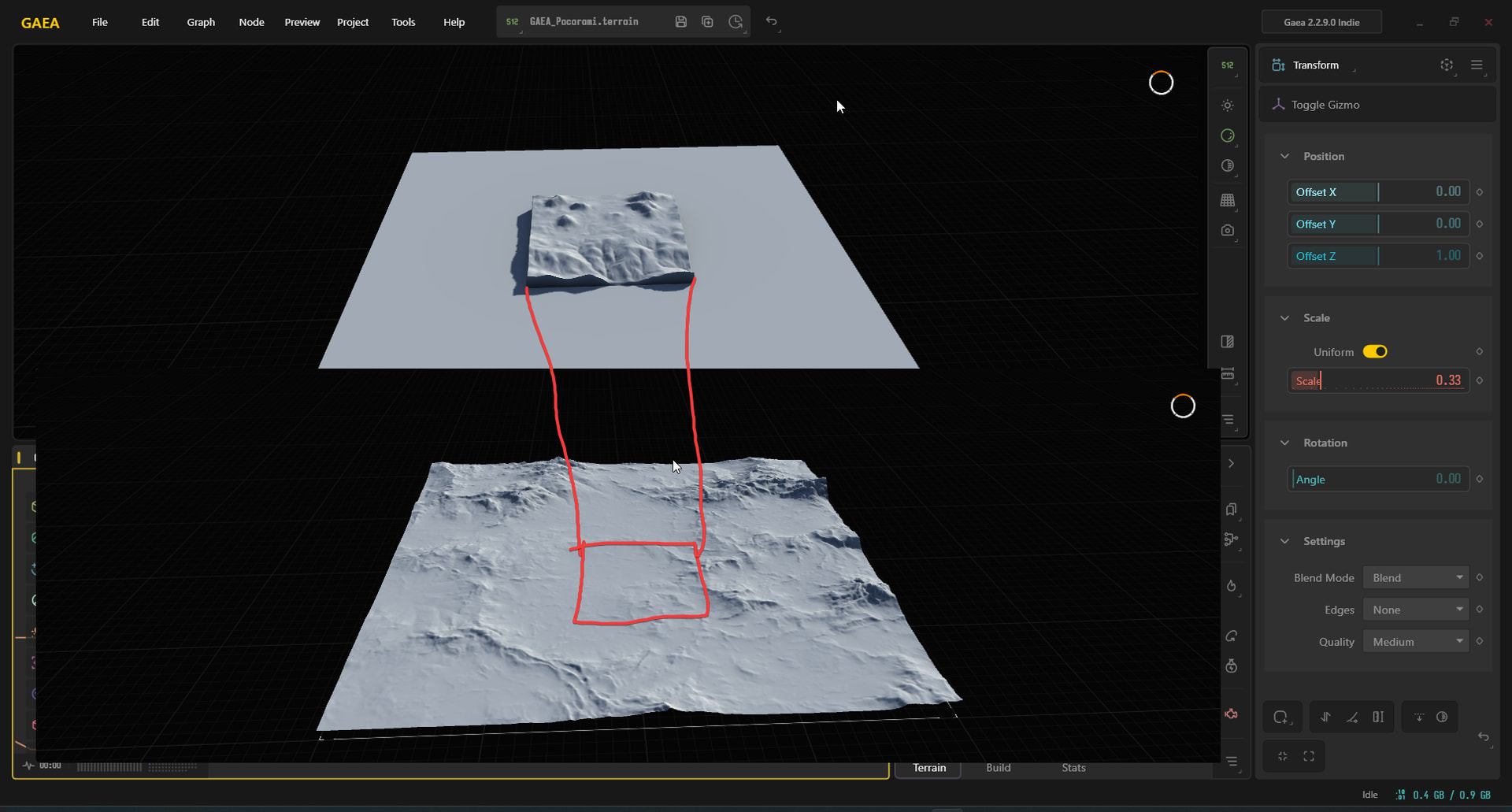
Combining without blending will create visual issues so typically you can’t want to blend two things together but keep them exactly the same and not cause that ( see combine - MAX 100) to see what I mean.
You have a few options though.
Smooth the scaled version edges and then blend.
For example
/transform > /edge - precise or low fall off> combine > tiny tiny process like very low duration /erosion2 ( this is the final blending )
You can also use /transpose
This mixes the look of one onto another while taking into consideration the two formation worth looking into.
Personally I mostly do the first option or a mix of both into a final empty project as create all sections independently.
That way I keep any procedural or baking requirements separate and leaves scaling a blending completely independent too
Hope that helps
Unfortunately, the edge after on the transform node doesn’t work—even when set to 1. It works with the node before the transform, but it’s frustrating not to be able to expand the edges and blend them instead of using an “iner.”
If you want to expand the edge to slope/keep without cutting into the existing terrain you can use /distance node and change it’s invert input/output toggles.
@TyXanders I came up with a really hacky solution: I opened it in Photoshop and resized the image without changing the canvas resolution. Then I used a filter from a program called XNormal (inside Photoshop, so I had to install the plugin) and used its dilation tool. Then I went back to Gaea and, using a blend node, applied the blend plus a mask I had to draw myself, because if I use an inverted shape and apply a blur, it doesn’t work as a mask—the shape only transmits edge information as a mask. I didn’t understand why that was the case, but anyway, I made the mask using the draw node.
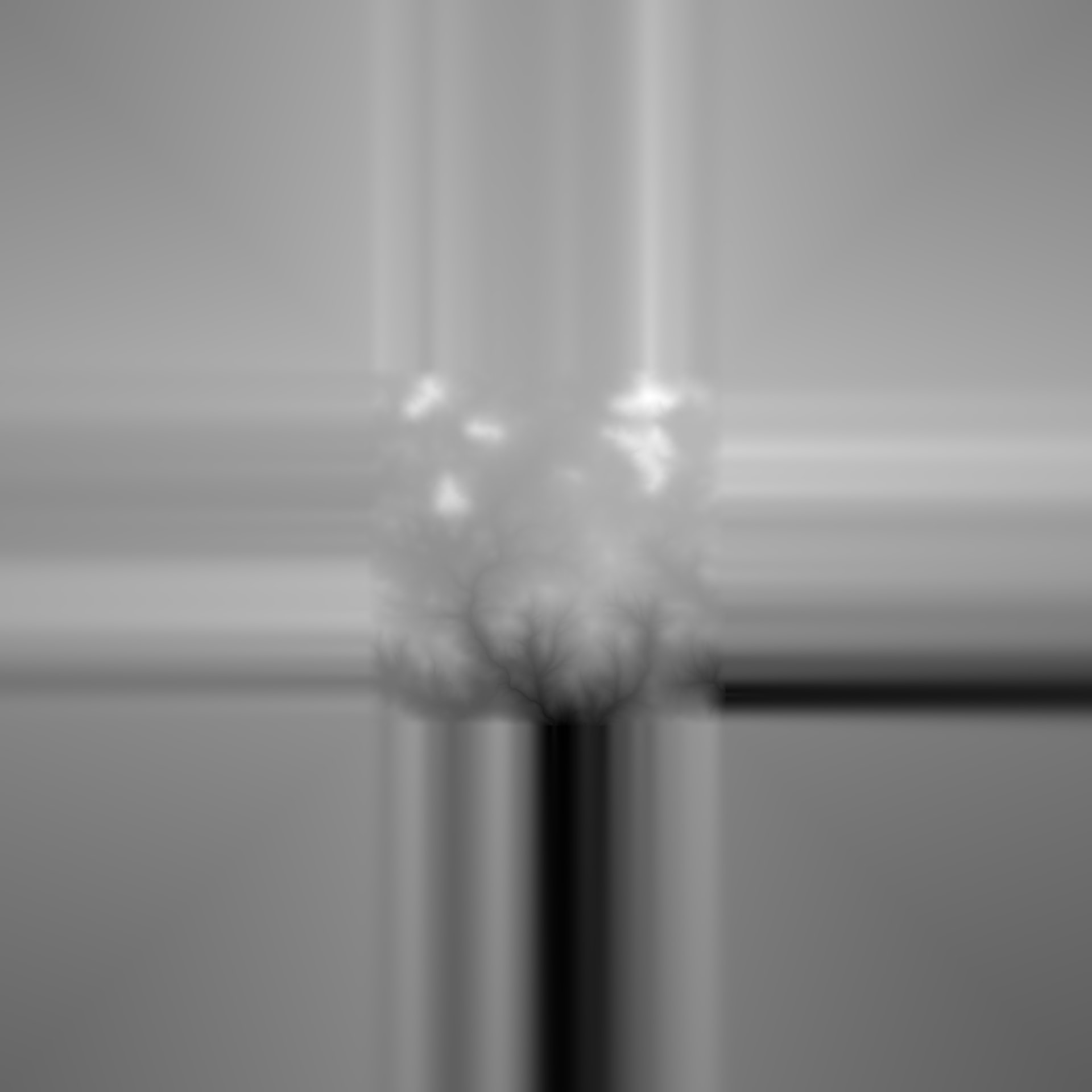
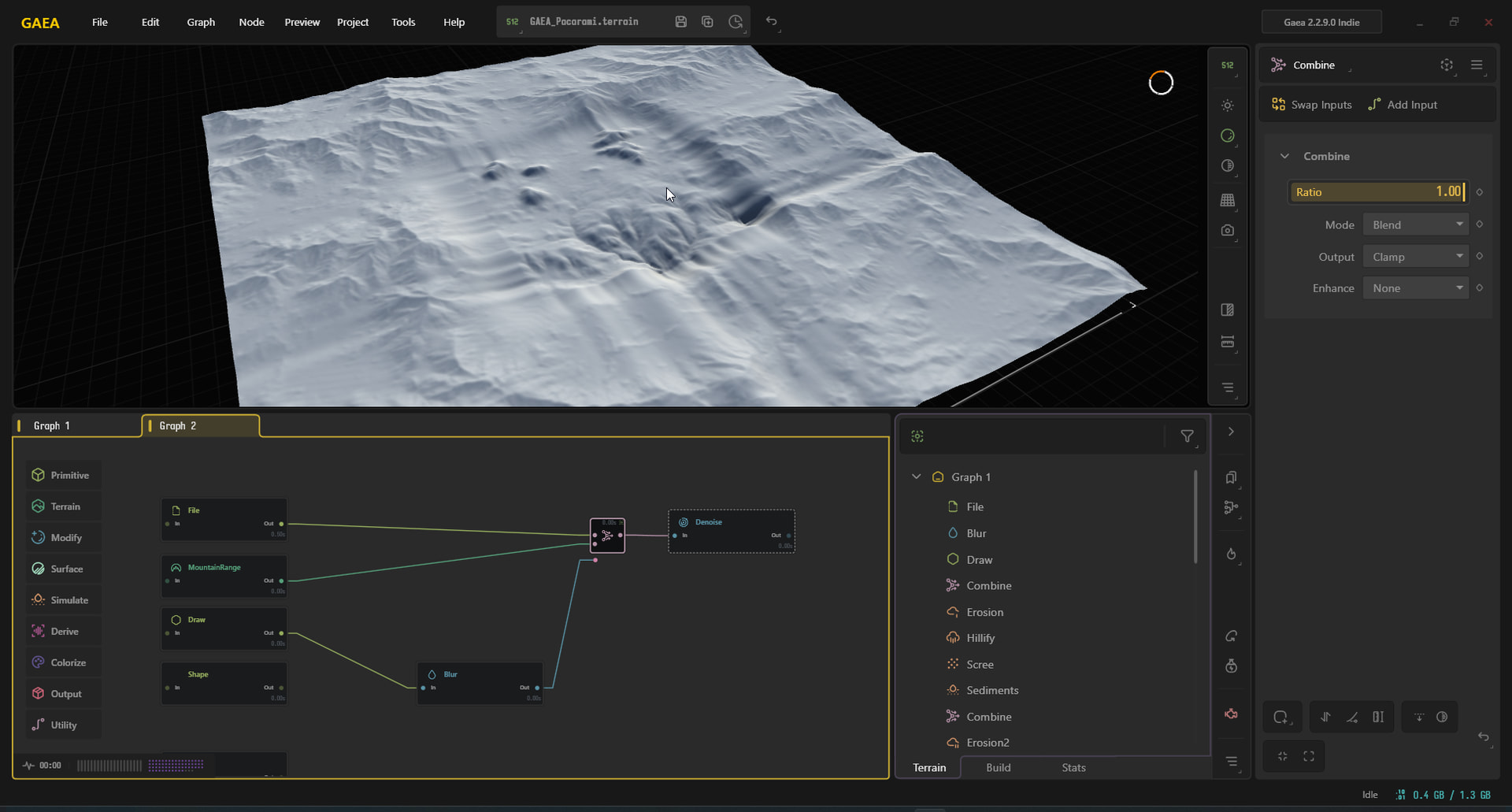
I honestly don’t know how this node works it (/distance) just switches between input and output toggles. Maybe Gaea needs to learn to work with the alpha channel in addition to grayscale, considering that 0 is black; in some cases, it should treat 0 as null instead of black (R:0, G:0, B:0, A:0). Maybe that would help create a distance output.
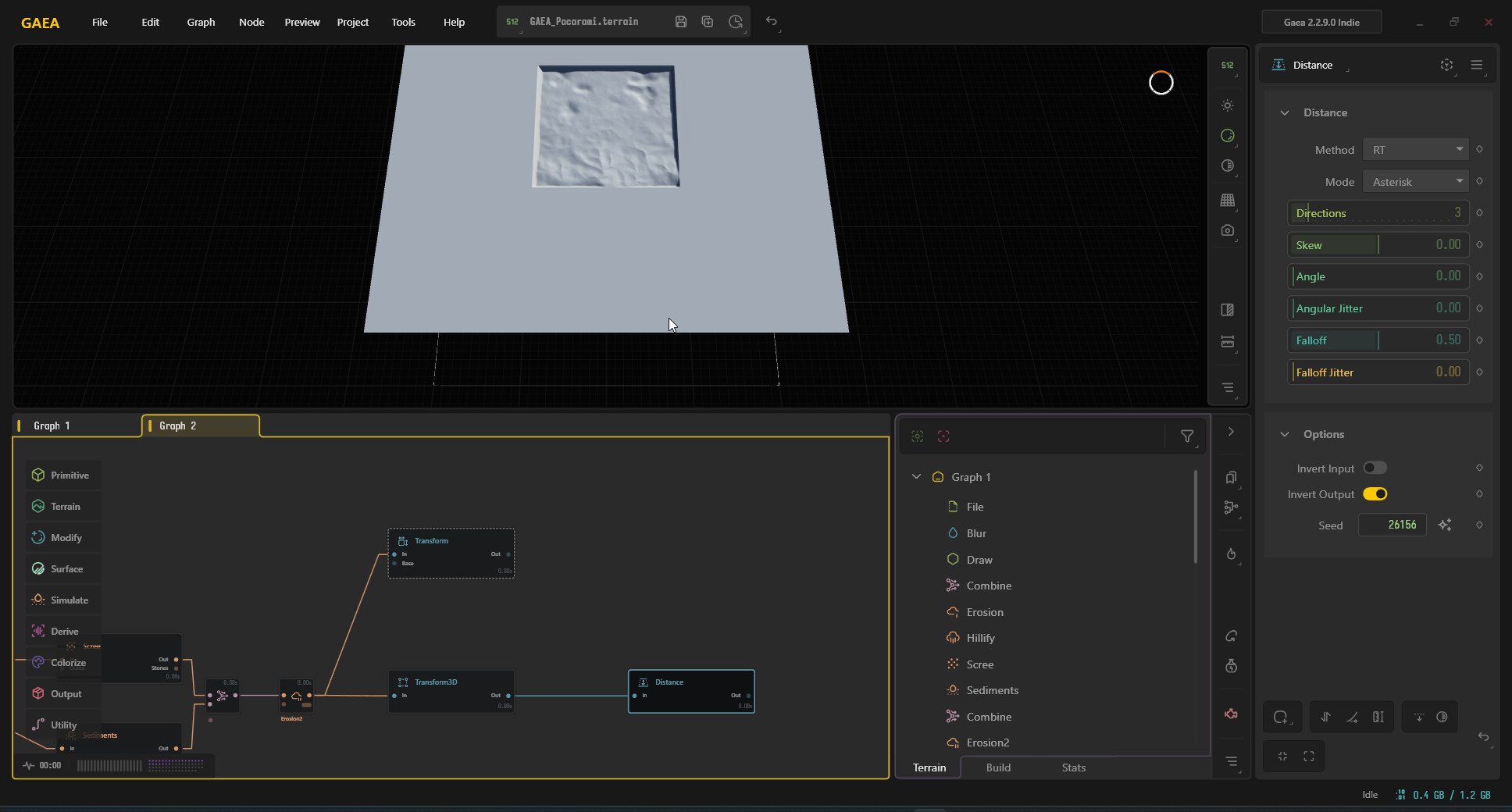
/Distance with the options i mentioned inverted will spread the outside of your scaled image out. This is instead of using /edge which will cut into your transform
This will give you more room to blend blur etc.
You specifically asked that you didn’t want to affect the tile you have transformed and you wanted to blend it with another.
So you must think how to blend a 90° edge into something else.
Are your typical blendy nodes.
In the case you demonstrated you took mostly neighbouring pixels and lerped them.
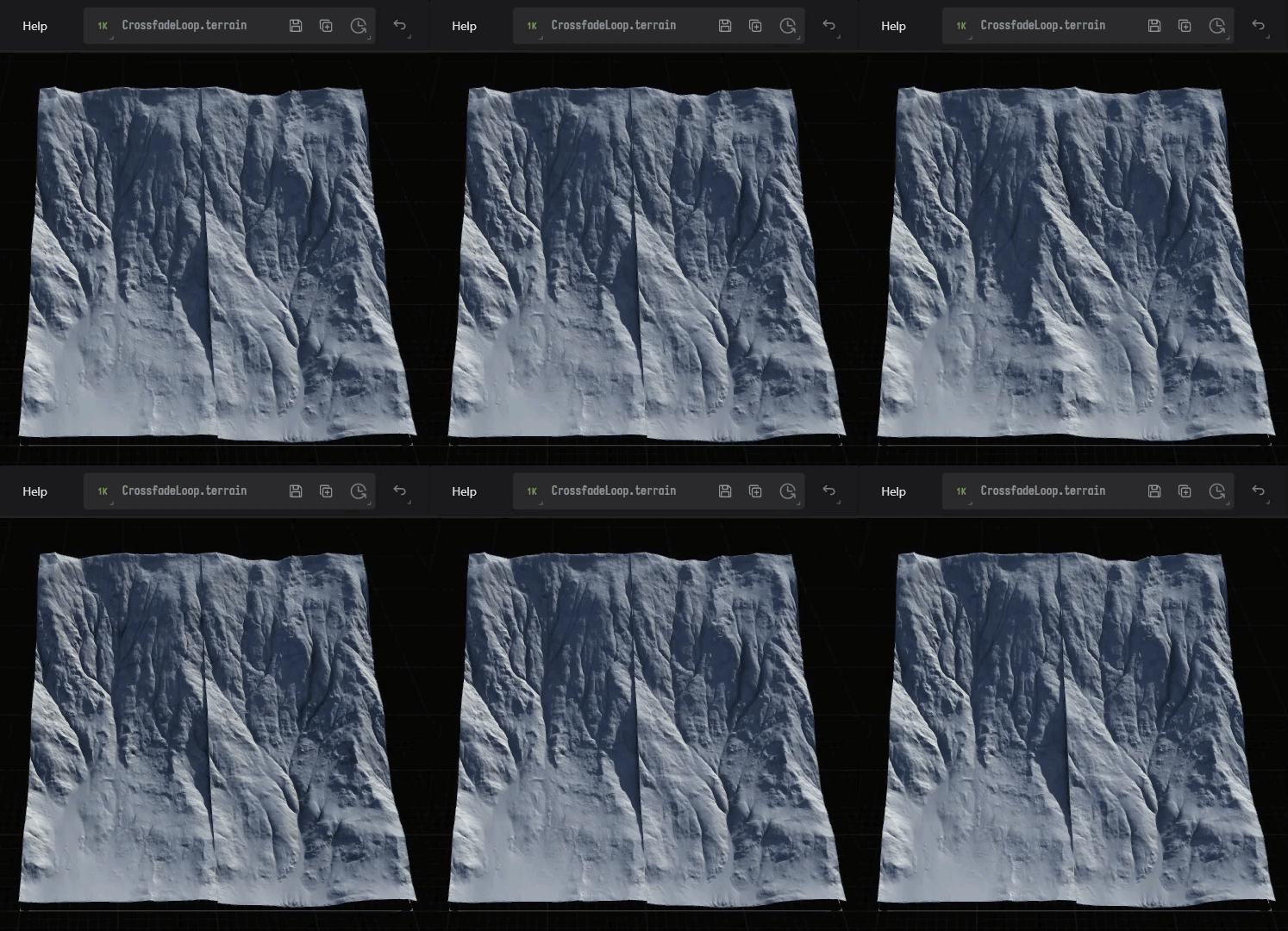
You could instead give yourself fall off to cross fade image 1 into 2.
If you take a simple combine process like
Your transform that is edge nodes and then combine max to your other you should get an already decent blend. But you now need to decide how to not effect the tile that you have set to not change
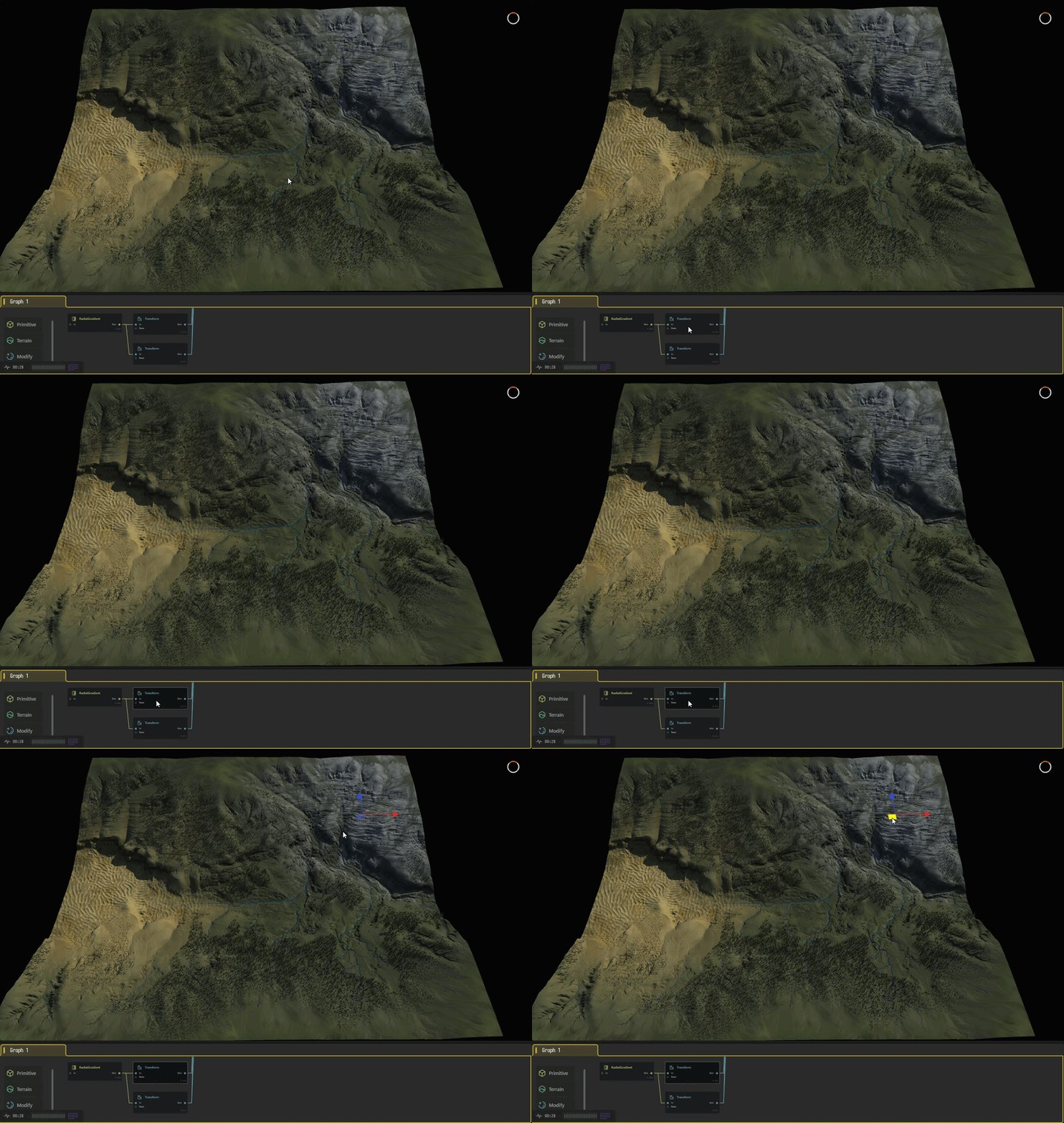
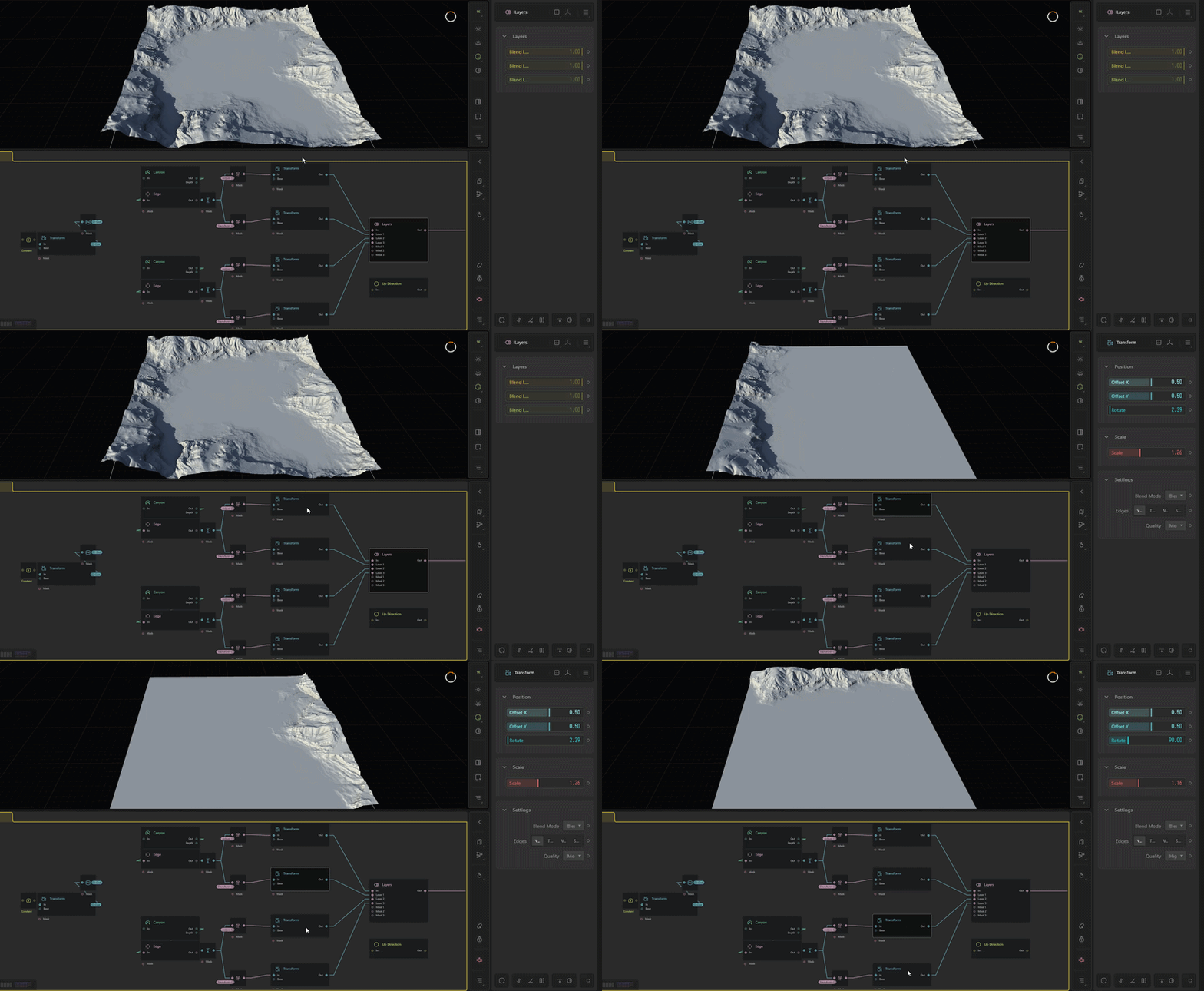
Some more small references here to maybe help you grasp a few concepts like blend, screen space, cross fade etc.
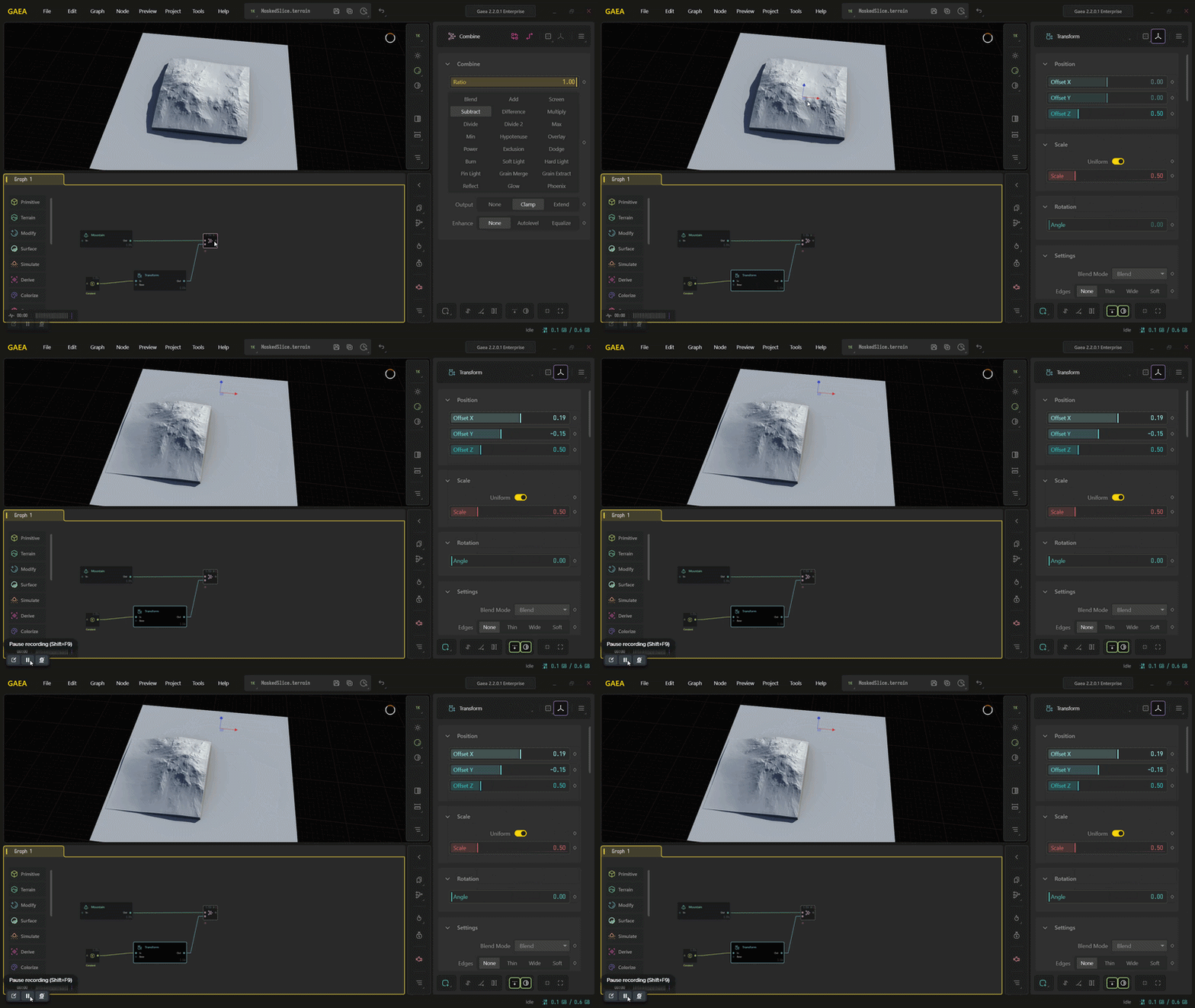
Start with the larger shape like the mountain range and scale it up by 0.33 and use that as your primary landscape’s base shape. That way you don’t have to “makeup” a surrounding landscape that matches.
After you create your landscape, you’ll have the larger shape around it where the edges should still line up so long as you protect them from anything too destructive.
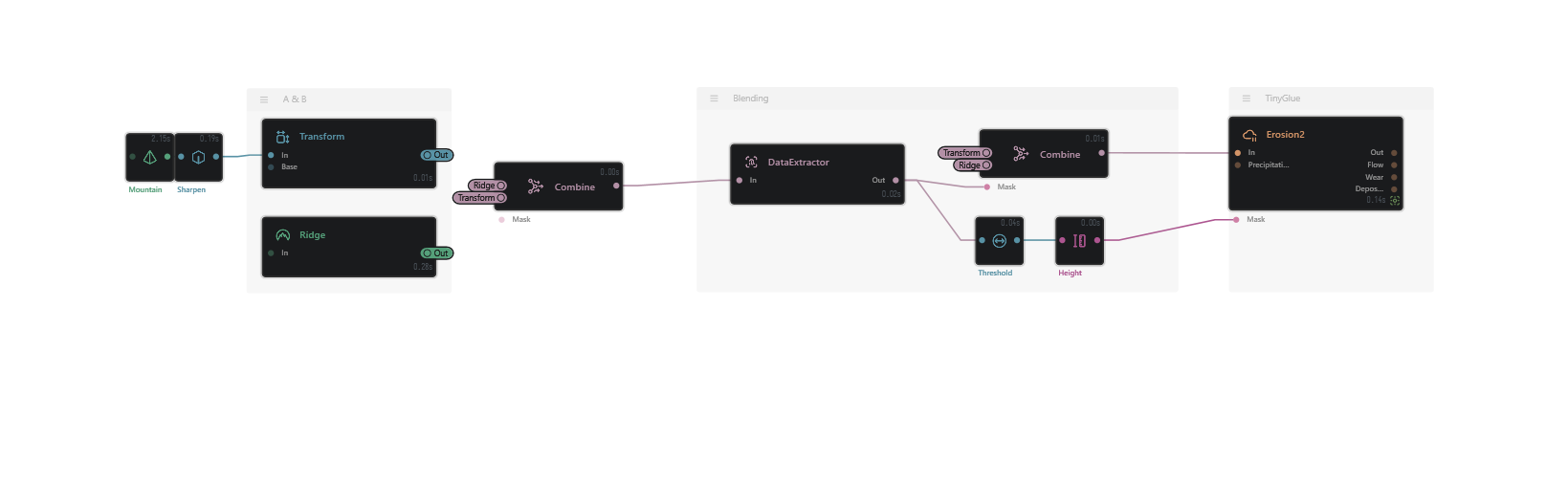
Here’s an example of a couple of blending options disscussing your restraints and hopefully the outcomes you’re looking for.
My only suggestion to this topic is start with the full terrain and cutout/export the center, like this it is much more convenient for outside terrains.
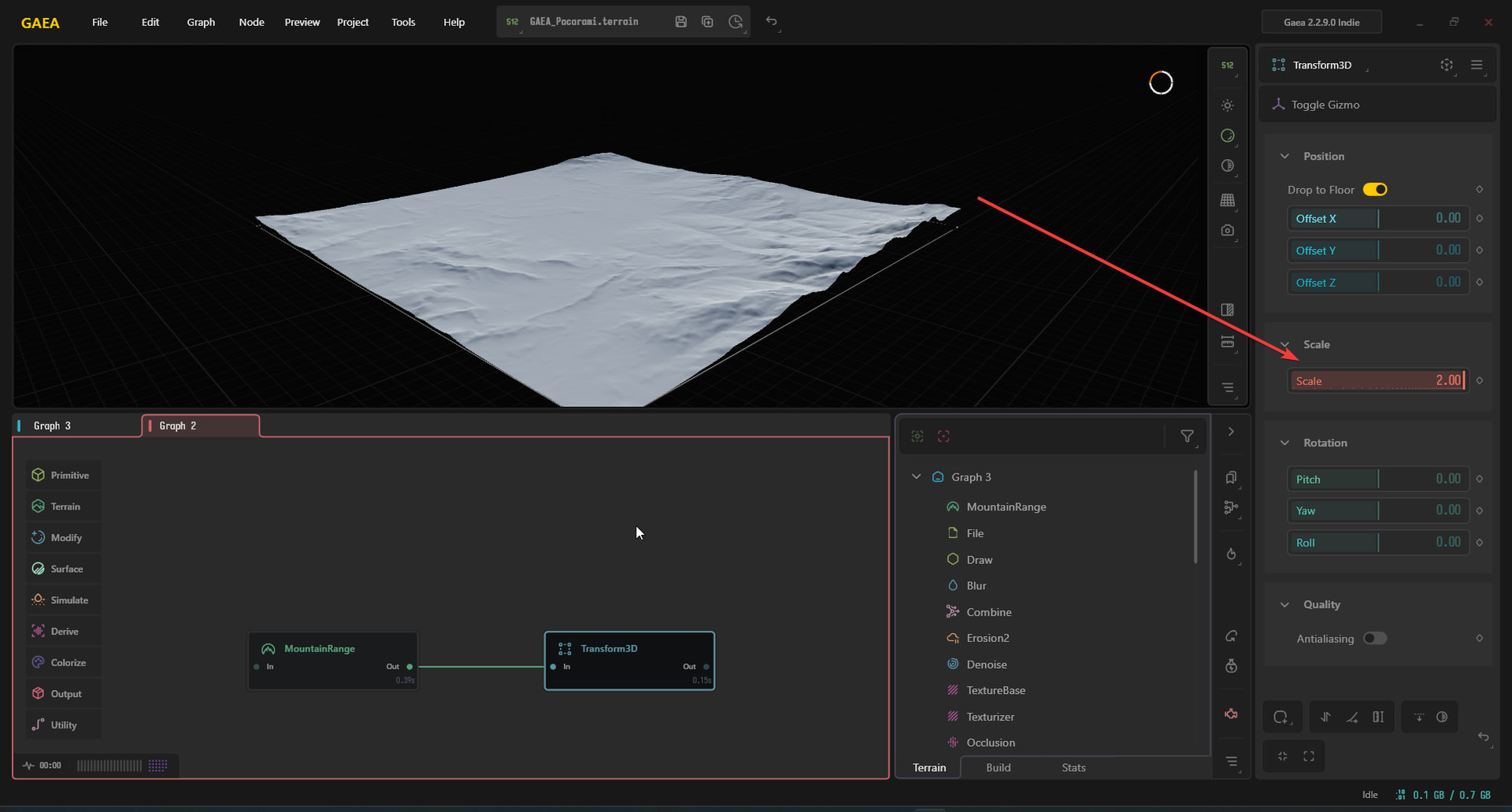
How do you create a reroute? It seems to be a different GAEA from GAEA2. Well, my only problem was changing the border of the main landscape, since it’s already in Unreal and I didn’t want to go through the trouble of reimporting it with a different shape and having to adjust everything again and do extra work.
Sorry, I didn’t understand 
Here’s a screen and max version of the set up i forgot to ad dthe files earlier.
BlendingWithConstraints_Screen.tfrag (18.0 KB)
BlendingWithConstraints.tfrag (17.8 KB)
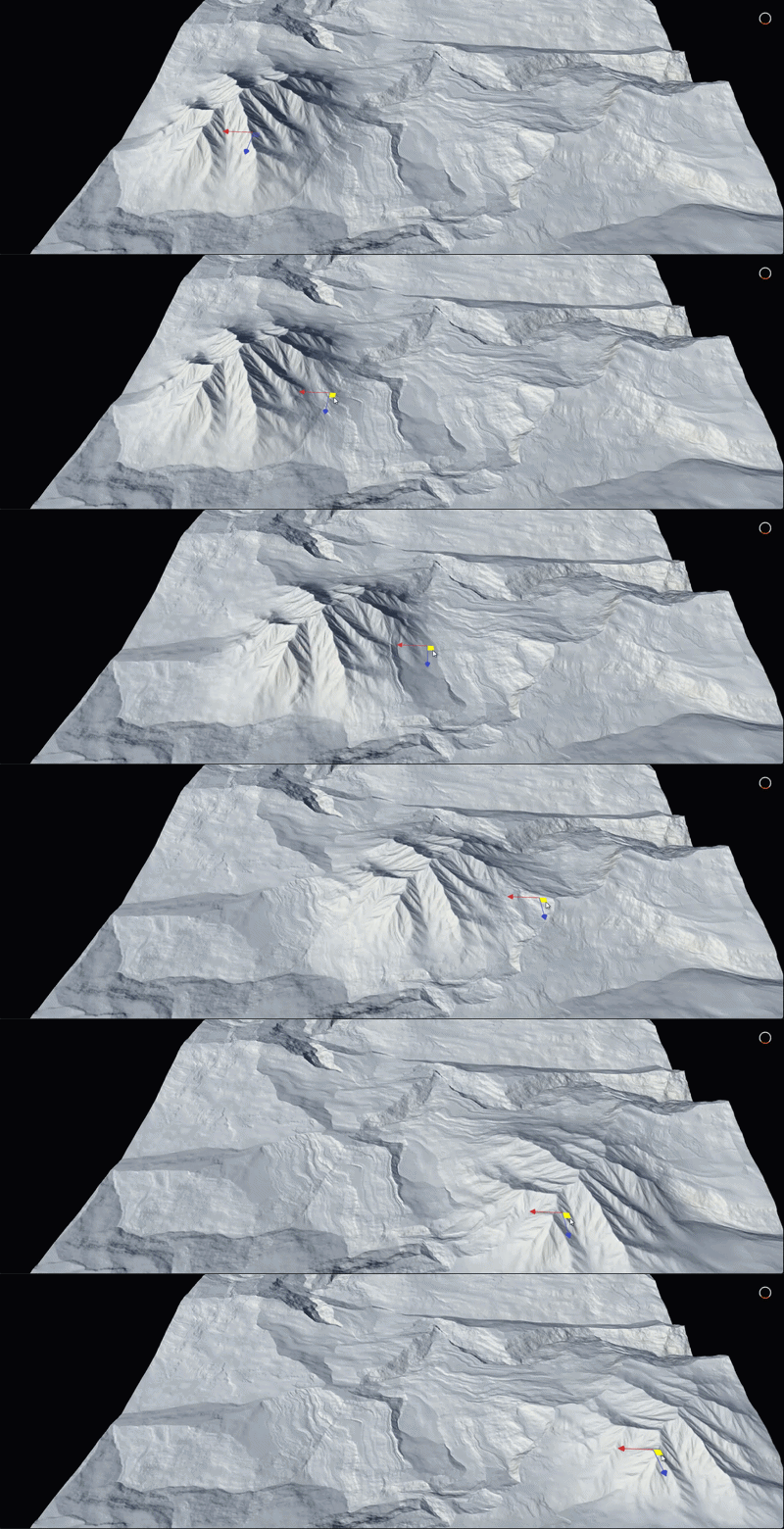
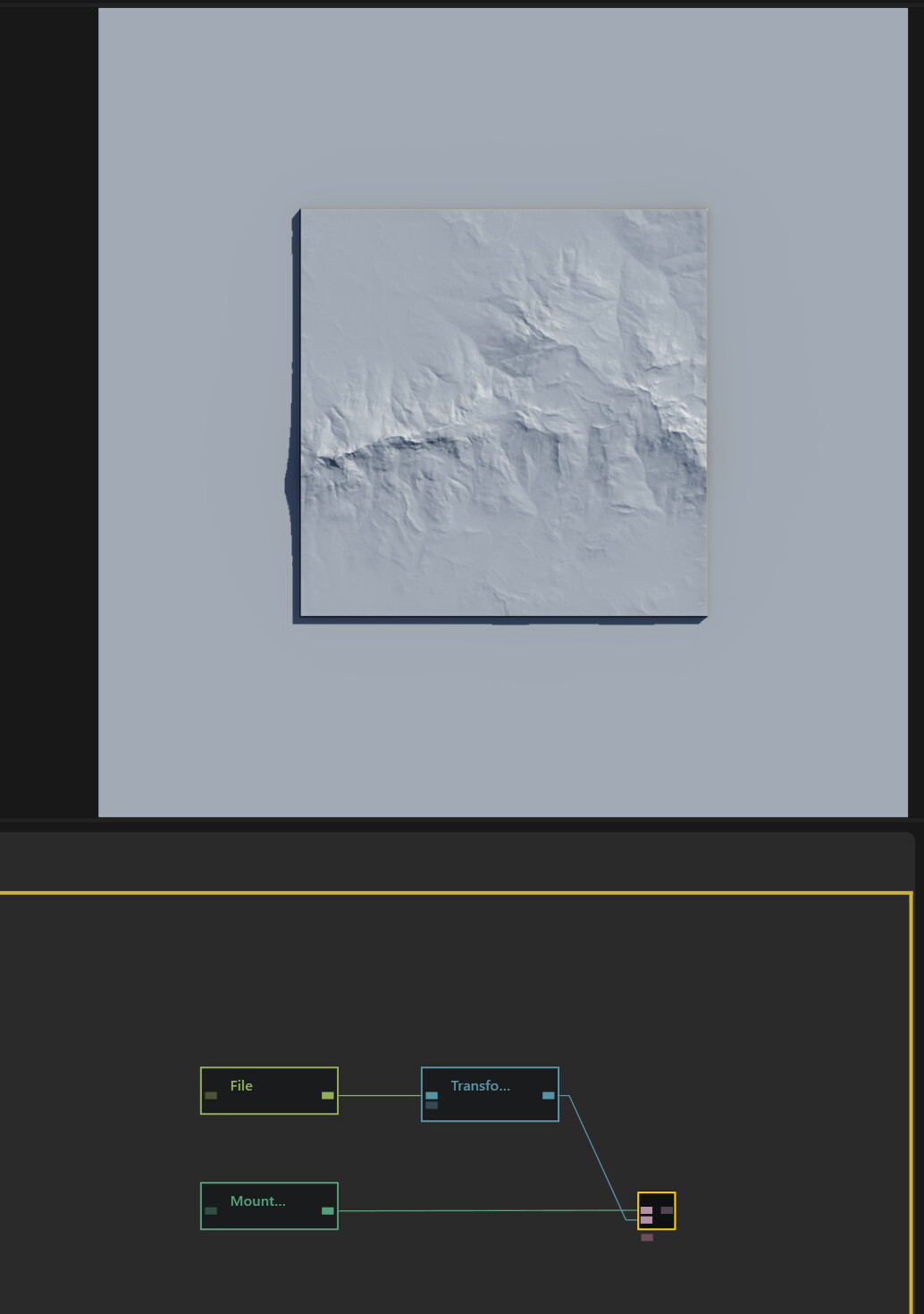
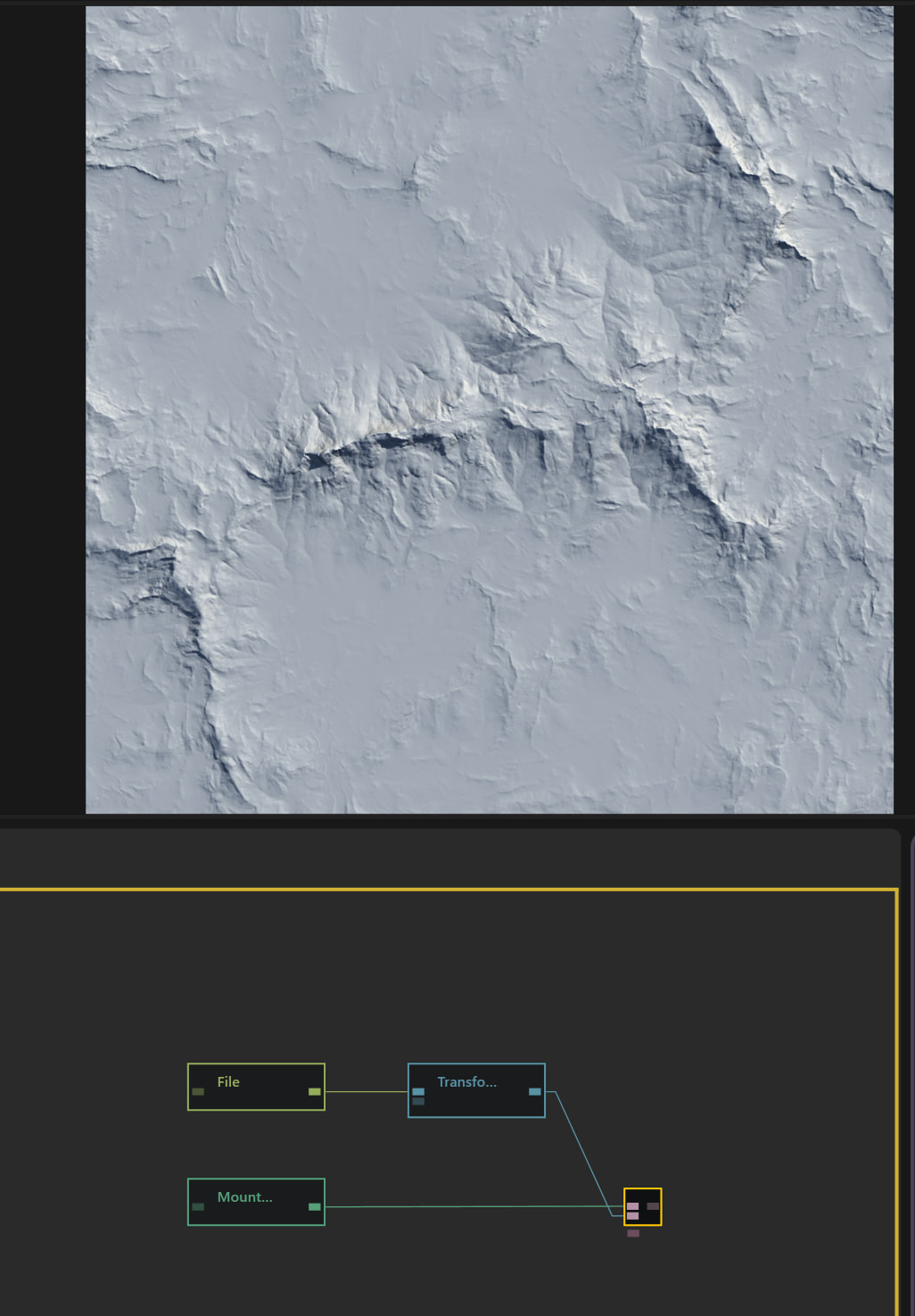
You would scale it up. Here’s an example file
Distant Terrain Bowl.terrain (25.6 KB)
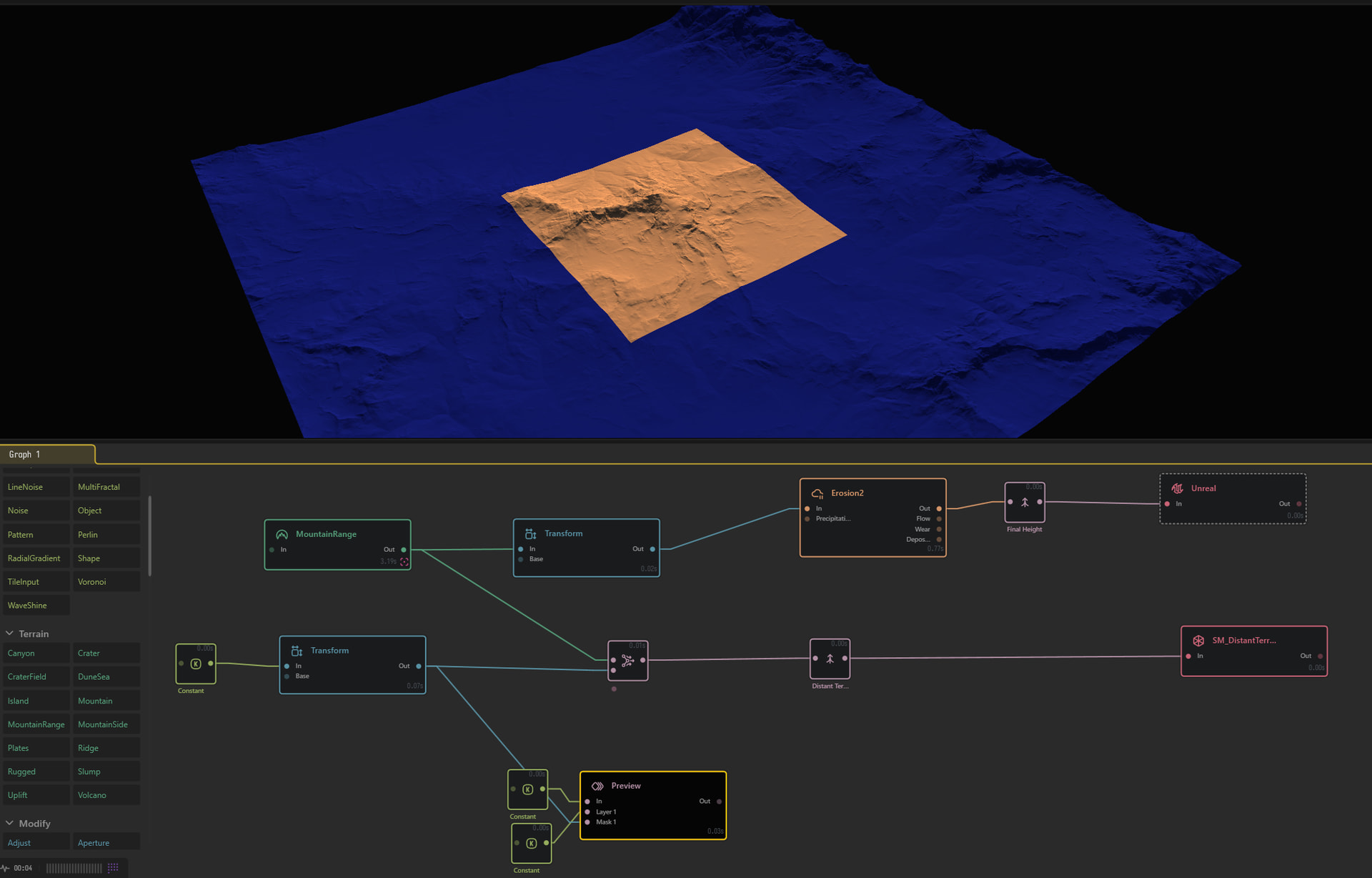
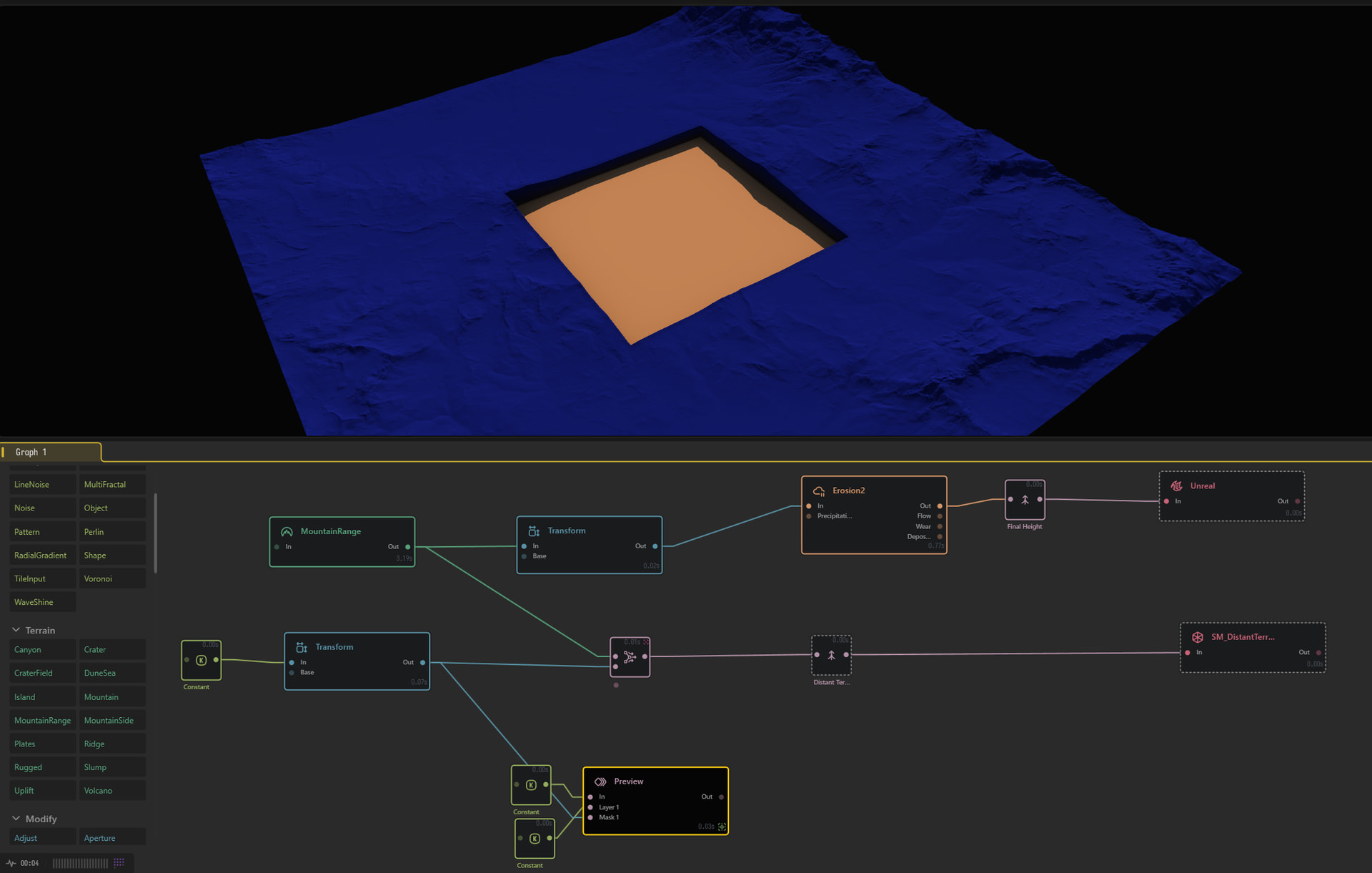
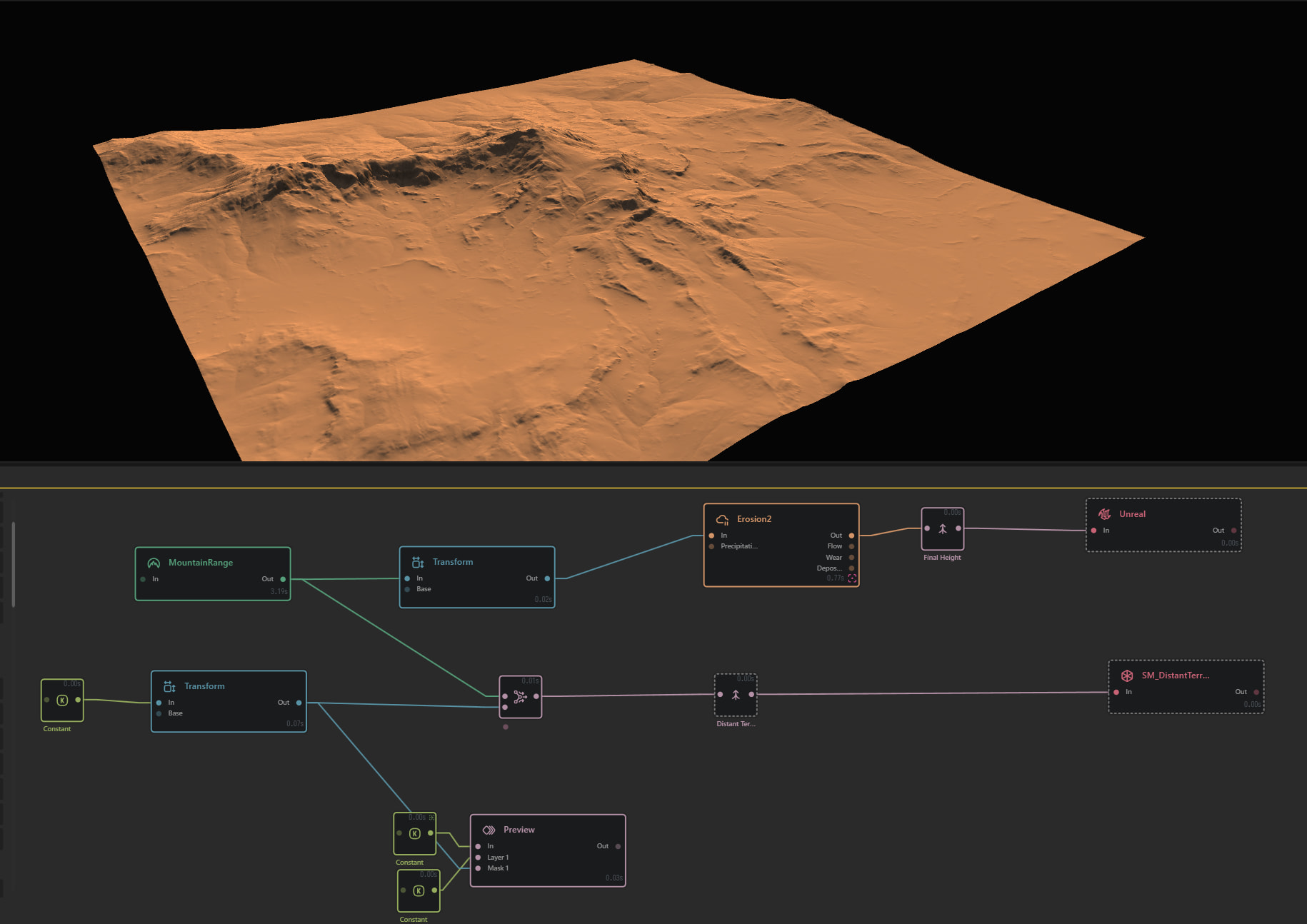
By starting with the large shape like the mountain range, and scaling up the center, you are now working within a larger shape that will match your center “primary” landscape.
Sorry, forgot you are trying to retain the original landscape, I’d suggest the mirroring approach then.
Terrain Stitching / Blending - Using Gaea / Ask for Help - Gaea Community
It would be a little bit of work to setup at first, but it would make for a good macro.